How to Switch Childcare Software Without Disrupting Your Center
Switching childcare management software can feel overwhelming, but with a clear plan it does not have to disrupt your daily operations. This guide walks you through every step, from recognizing when it is time to switch to getting your team and families comfortable with the new system.
Quick Answer
Plan your childcare software switch during a quiet period, allow 2-4 weeks for setup, export your essential data (child records, family contacts, billing history) before canceling, train staff on daily tasks first, and give families 1-2 weeks notice with clear setup instructions for the new parent app.
1. When it is time to switch
No software lasts forever. If your current system is creating more problems than it solves, that is a strong signal to start evaluating alternatives. Here are the most common signs that it is time to move on:
No mobile app or outdated mobile experience: Parents expect to receive updates, photos, and messages on their phones. If your software does not offer a modern mobile app for families, you are creating friction for the people who matter most.
No online payment processing: Collecting checks or cash creates administrative overhead and increases the risk of late payments. Modern childcare software should support online tuition payments.
Poor customer support: If you cannot get help when something breaks, or support tickets go unanswered for days, you are on your own when it matters most.
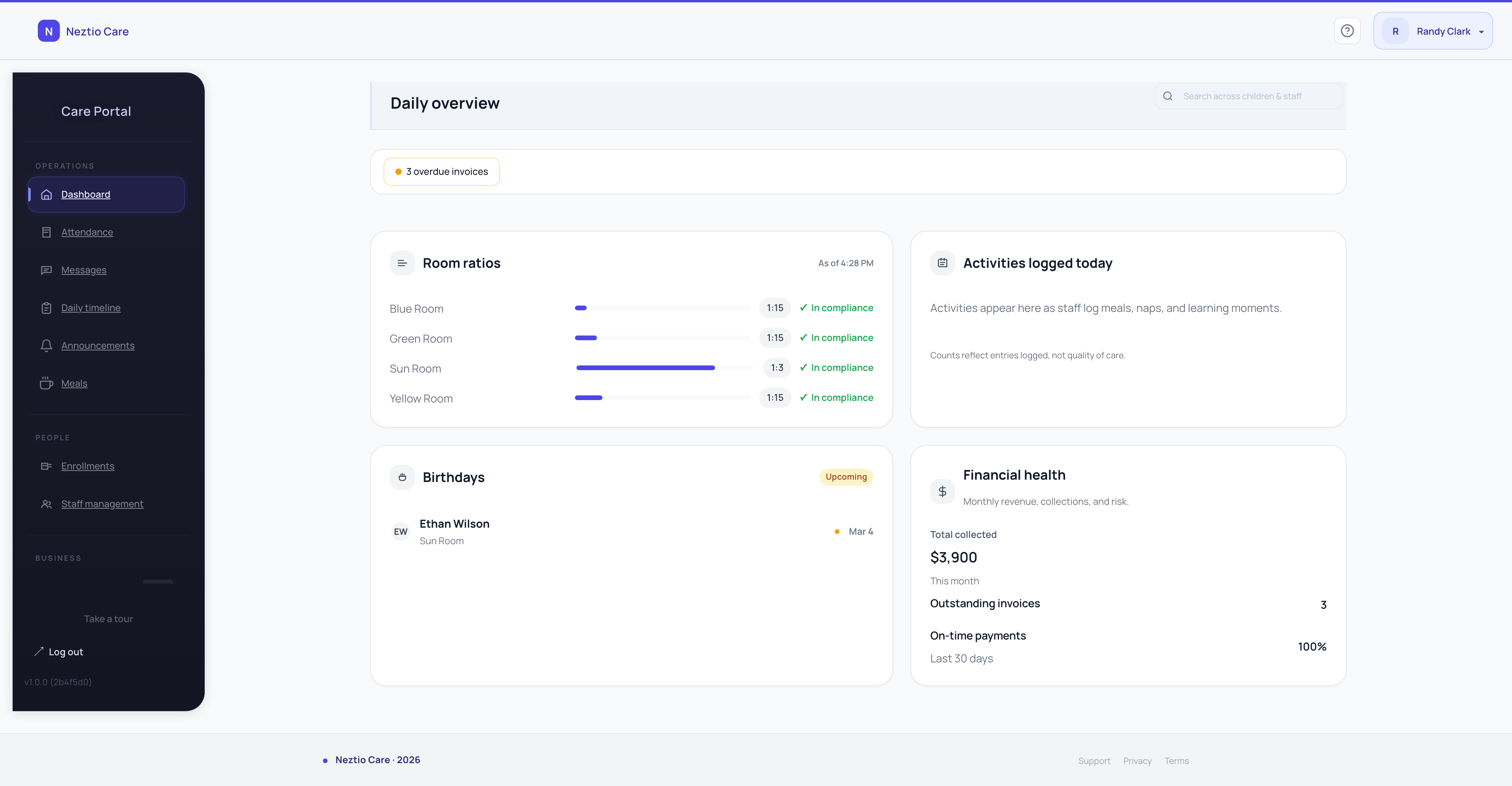
Feature gaps: Your needs evolve as your center grows. If your current system lacks features you now rely on, such as meal tracking, digital attendance, or staff management, you may be patching gaps with spreadsheets or paper logs. Our comparison page lets you see exactly where platforms differ.
Price increases without added value: If your vendor keeps raising prices without shipping meaningful improvements, the value equation has shifted.
Staff complaints about usability: If your teachers dread using the software or constantly work around it, the tool is slowing your team down rather than helping them.
If two or more of these apply, it is worth seriously evaluating what else is available. For guidance on evaluating options, see our guide to choosing childcare software.
2. Planning the transition
A successful switch starts with a good plan. Rushing the process is the single biggest source of problems.
Pick a quiet time: Avoid switching during back-to-school season (August/September) or during open enrollment periods. Winter break, spring break, or a slow summer stretch are good windows. The less hectic your daily operations, the more bandwidth your staff has to learn a new system.
Allow 2 to 4 weeks for setup: Give yourself enough time to configure the new system, migrate data, train staff, and notify families. Trying to do it all in a weekend is a recipe for mistakes.
Assign a point person: Designate one staff member (often the director or assistant director) as the primary contact for the transition. This person coordinates with the new vendor, manages the timeline, and serves as the go-to for questions from the rest of the team.
Get staff buy-in early: Explain why you are switching and how the new system will make their jobs easier. People resist change when they feel it is being imposed on them without explanation. Involve lead teachers in the evaluation process if possible.
Important
Check your current contract for cancellation terms before committing to a switch date. Some vendors require 30 to 90 days notice or charge early termination fees.
3. What data to migrate
You do not need to move everything from your old system. Focus on the data that is essential for daily operations, and let historical data stay in your old system as an archive (most vendors allow read-only access for a period after cancellation).
Child records: Names, dates of birth, allergies, medical conditions, dietary restrictions, and immunization status. These are critical for safety and licensing compliance.
Family contact information: Parent/guardian names, phone numbers, email addresses, home addresses, and emergency contacts. You need this from day one in the new system.
Enrollment status: Which children are currently enrolled, which classrooms they are assigned to, and their schedules (full-time, part-time, specific days). For tips on organizing this data, see our guide to the childcare enrollment process.
Billing history: If possible, export a record of past invoices and payments. This is helpful for tax season and for resolving any billing disputes. Most systems allow CSV exports of billing data.
Staff records: Names, roles, contact information, classroom assignments, and any certifications or training records you track in your system. Our staff management guide covers what records to keep and why.
Tip: Export your data from the old system before you cancel your account. Most childcare software platforms support CSV exports for child records, family data, and billing history. Download everything you might need and store it securely.
4. Setting up the new system
Once you have your data exported and your timeline set, it is time to configure the new platform. Work through these steps methodically:
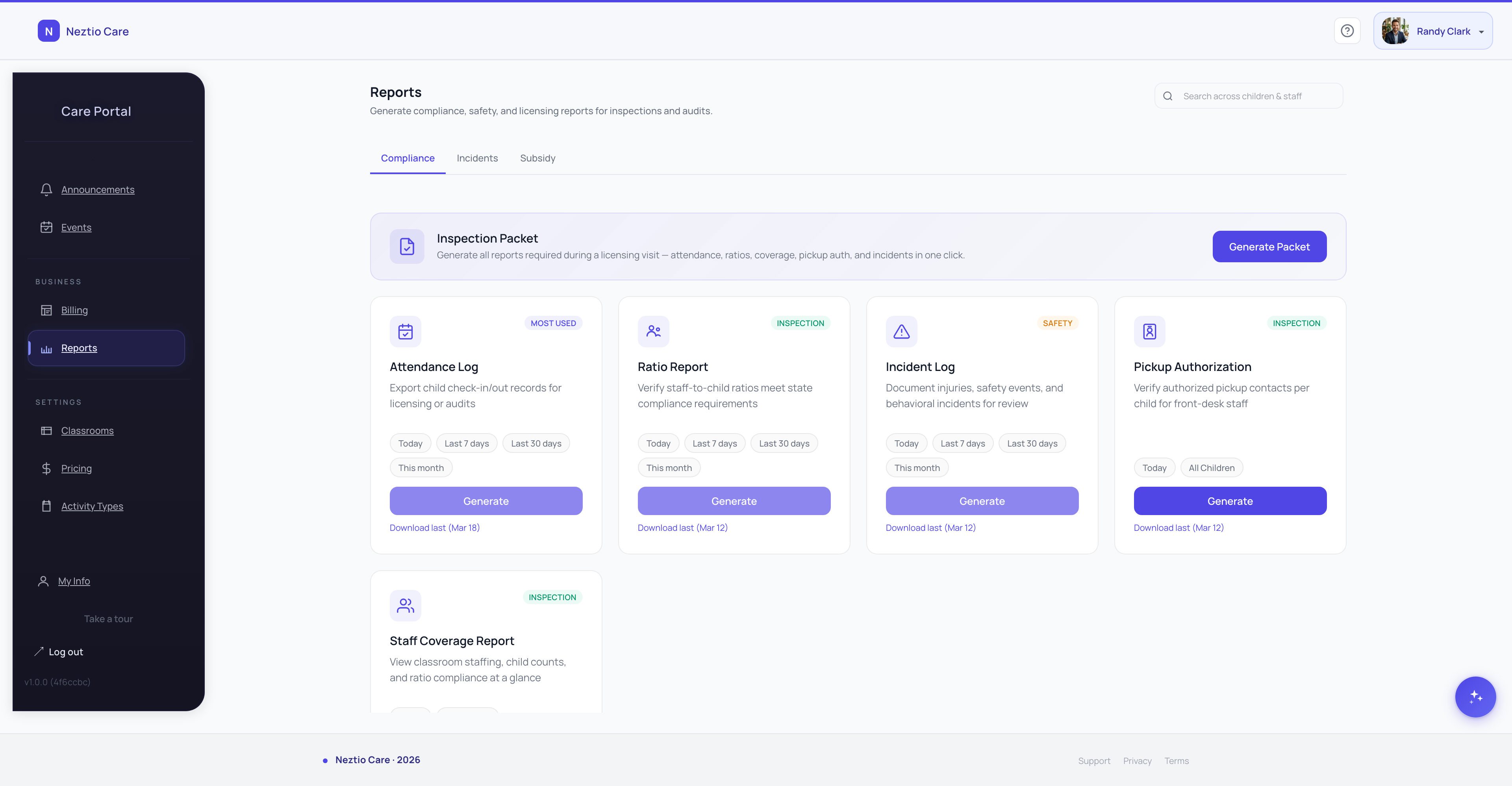
Configure classrooms and age groups: Set up your classroom structure to match your center. Include room names, age ranges, and capacity limits so the system can help you track ratios.
Set up tuition plans and billing schedules: Enter your tuition rates, payment frequencies (weekly, biweekly, monthly), and any discounts (sibling discounts, multi-day discounts). Configure late fees and payment policies. Need help structuring these? See our guide to automating childcare billing.
Add staff accounts with appropriate permissions: Create accounts for each staff member and assign roles. Directors and administrators typically need full access, while teachers may only need access to their classroom's attendance, messaging, and daily reports.
Import child and family records: Use the CSV exports from your old system to populate child profiles, family contact information, and enrollment data. Verify the imported data is accurate before going live.
Test before going live: Run through a full day's workflow in the new system: mark attendance, send a test message, create a daily report, generate an invoice. Catch issues now, not on your first real day.
5. Training your staff
Staff adoption is the make-or-break factor in any software switch. If your teachers are not comfortable with the new system, they will resist using it, and you will end up with incomplete data and frustrated parents.
Schedule dedicated training time: Do not try to train staff during nap time or between activities. Set aside a staff meeting or a dedicated session before or after hours. Even 60 to 90 minutes of focused training is more effective than scattered 10-minute walkthroughs.
Focus on daily tasks first: Teachers need to know how to take attendance, send messages to parents, and log daily activities (meals, naps, diaper changes, photos). These are the tasks they will do every single day. Save advanced features for later.
Cover admin features separately: Billing, enrollment management, and reporting are typically used by directors and office staff. Train these users separately so you can go deeper without losing the attention of classroom teachers.
Create quick-reference guides: A simple one-page cheat sheet with screenshots for the most common tasks (check a child in, send a message, log a meal) can be posted in each classroom. Staff can refer to it during the first week instead of asking the director every time.
6. Communicating with families
Families need clear, timely communication about the switch. Surprise them on go-live day and you will spend the next week fielding confused phone calls and emails.
Give 1 to 2 weeks notice: Send a message through your current system (and email, if possible) letting families know about the upcoming change. Include the date the switch will happen.
Explain the benefits: Tell families what they will gain: a better mobile app, easier payment options, real-time updates on their child's day, or more photos and daily reports. Focus on what improves their experience, not the technical details of the switch.
Provide setup instructions: Send clear instructions for downloading the new parent app (with links to the App Store and Google Play), creating their account, and any first-time setup steps. Keep the instructions short and include screenshots if possible.
Be available for questions: Expect a few families to need help. Have your front desk or director ready to walk parents through the app at pickup and drop-off during the first few days.
7. The first week
The first week on a new system is always the hardest. Set realistic expectations and have a plan for handling issues as they come up.
Run parallel systems if possible: For the first 2 to 3 days, consider running both the old and new systems side by side, at least for critical functions like attendance. This gives you a safety net while you build confidence in the new platform.
Monitor for issues: Check in with each classroom at least once during the day. Are teachers able to check children in? Are messages going through? Are parents receiving daily reports? Catch problems early before they snowball.
Keep support contact info handy: Make sure your point person has the new vendor's support phone number, email, or chat link readily available. Quick resolution of issues during the first week builds staff confidence in the new system.
Expect a learning curve: Things will be slower during the first few days. That is normal. Reassure staff that speed will come with practice, and resist the urge to switch back at the first sign of friction.
Tip: At the end of the first week, do a quick debrief with your staff. Ask what is working, what is confusing, and what they need help with. Address the top issues right away so week two goes more smoothly.
8. Common mistakes to avoid
Most childcare centers that have a rough software transition make one or more of these avoidable mistakes:
Switching mid-billing cycle: This creates confusion about which system families should pay through and can result in double charges or missed payments. Time your switch to align with the start of a new billing period.
Not testing before go-live: Going live without running through a full day's workflow in the new system is risky. Test attendance, messaging, daily reports, and billing in a controlled setting before your first real day.
Skipping staff training: Handing staff a new login and telling them to figure it out does not work. Invest the time in proper training, even if it means paying for an extra staff meeting.
Not communicating with families: Parents who are blindsided by a new app and new login credentials will be frustrated. Give them advance notice and clear instructions.
Trying to migrate everything at once: You do not need to move years of historical data into the new system. Prioritize active child records, family contacts, and current enrollment. Keep old billing records as exported files for reference.
Ready to make the switch?
Switching childcare software does not have to be stressful. With a clear timeline, thorough data preparation, proper staff training, and proactive family communication, most centers are up and running on a new system within two to three weeks. Neztio's switch program provides hands-on migration support to make this even easier.
Neztio offers onboarding support to help centers transition smoothly, including help with data import, staff training, and parent setup. Get started with Neztio and see how attendance tracking, messaging, daily reports, billing, meal tracking, enrollment, and staff management all work together in one platform.
Related
How to Choose Childcare Software: A Buyer's Guide
Related
How to Automate Childcare Billing and Get Paid Faster
Related
Childcare Software Migration Checklist
Glossary terms in this article
Childcare Management Software
An all-in-one platform that helps childcare centers manage enrollment, attendance, billing, parent communication, and daily operations.
Enrollment
The process of registering children into a childcare program, including collecting required forms and documentation.
Billing Automation
Using software to automatically generate invoices, process payments, and track tuition balances for enrolled families.
Parent Communication
The tools and practices childcare providers use to share updates, photos, and messages with families about their child's day.